Why Use Icograms Designer for Hospital Layouts?
You do not need advanced design skills to build a professional hospital layout. Icograms Designer uses a drag-and-drop interface that feels natural from the first click. You simply pick elements and place them where they belong. This makes the whole process smooth, even if you are creating your first layout.Another strong advantage is the extensive library of icons and shapes. You can quickly represent wards, diagnostic rooms, reception areas, and many other hospital zones. Everything is designed to match healthcare environments, so your layout instantly looks relevant and polished.
You also save a lot of time by starting with ready-made templates. Instead of building everything from scratch, you begin with a structured base and adjust it to your needs. This approach helps you move faster while still keeping full control over the final result.
Customization is another key benefit. You can adjust colors, labels, and visual styles to match your hospital’s branding or internal standards. This flexibility allows you to create custom hospital layouts that are not only functional but also visually consistent.
At the same time, Icograms Designer helps you stay cost-efficient. You do not need to hire a professional designer for every update or new layout. You can handle everything yourself while still achieving a high-quality result.
Once your layout is ready, you can export it in different formats. This makes it easy to use your design in presentations, printed materials, or digital platforms. You create it once and reuse it across multiple purposes.
Creating a Hospital Layout and Floor Plan
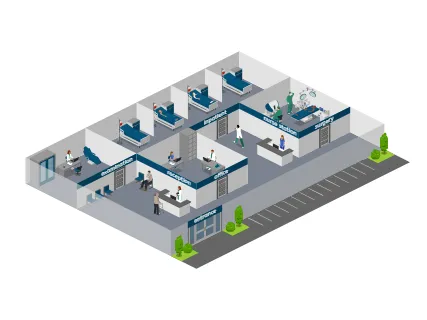
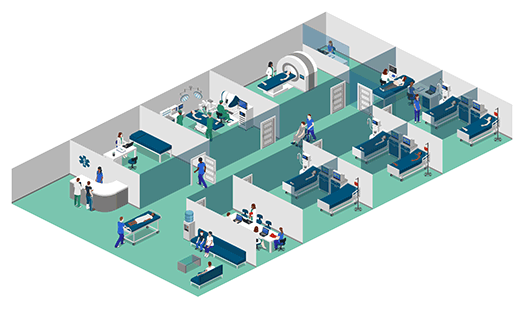
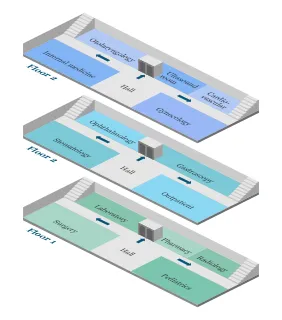
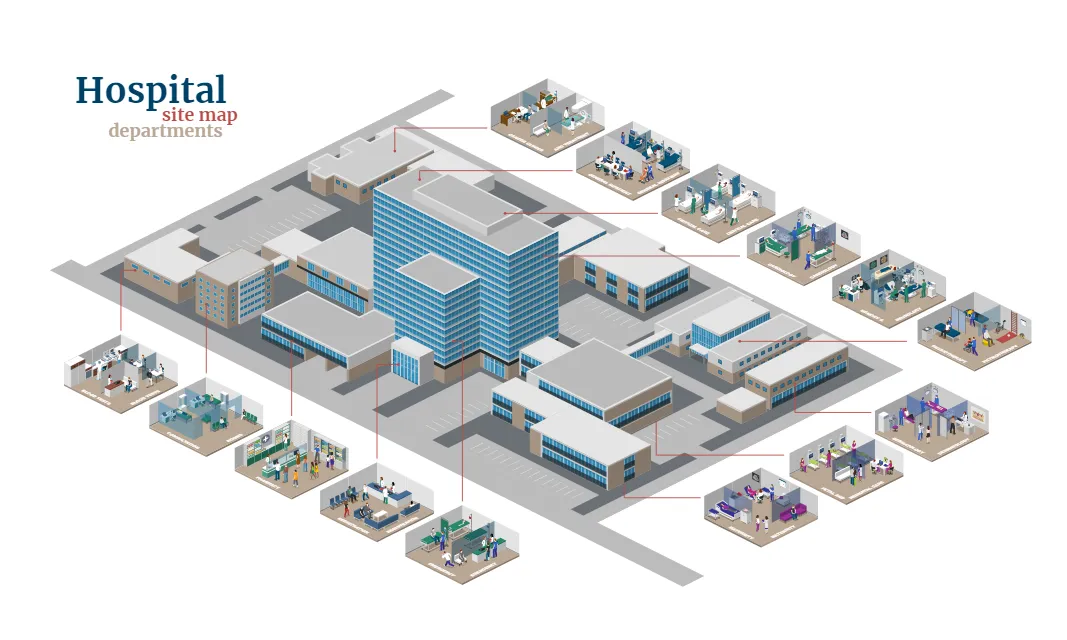
You usually begin by starting a new project. You can choose a blank canvas if you want full control, or select a hospital-specific template for a quicker start. Both options give you flexibility depending on your workflow.Next, you outline the structure of your hospital. You define areas like patient wards, emergency rooms, operating theaters, and administrative offices. You can also include cafeterias, staff rooms, parking zones, and entrances. This stage builds the foundation of your layout and helps you organize the space clearly.
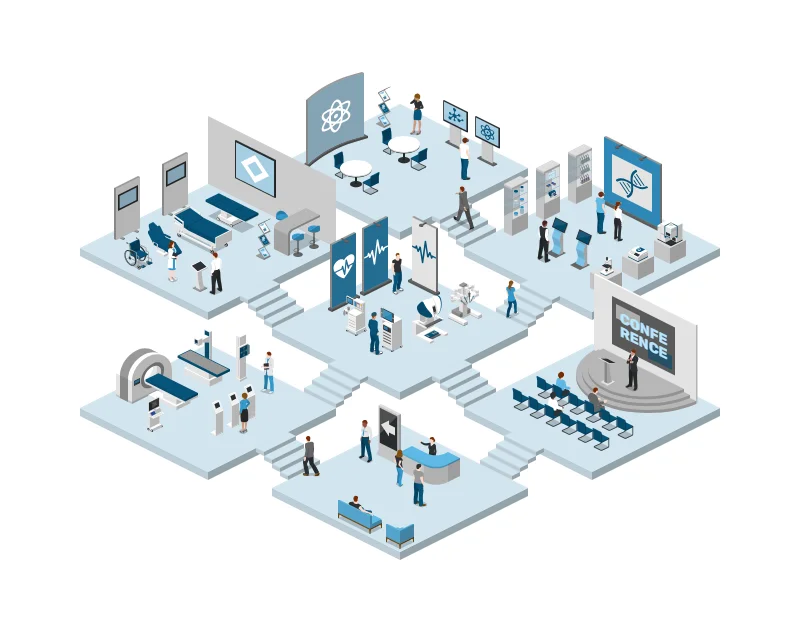
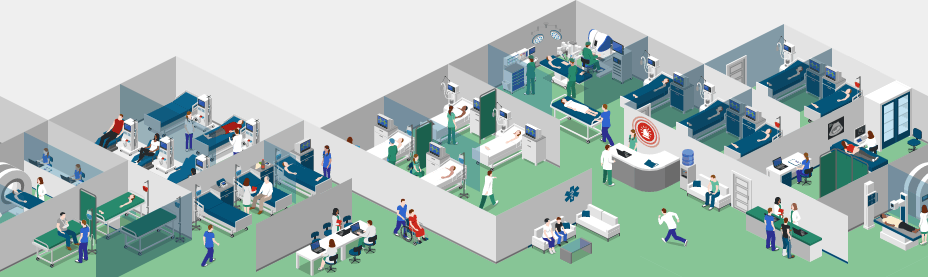
After that, you start adding visual elements. Icograms Designer offers a wide range of healthcare icons that represent beds, equipment, doors, and pathways. You place these elements into your layout to make it more detailed and easier to understand. Clear labeling at this stage ensures that anyone looking at the layout can quickly interpret it.
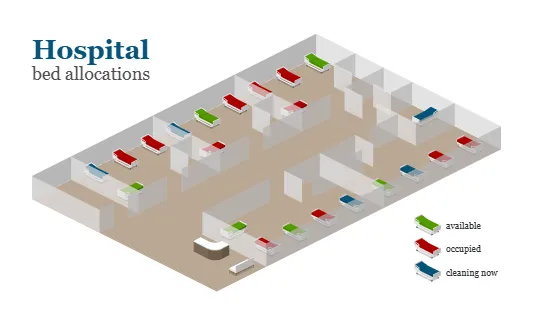
Then you move on to customization. You can apply color schemes to separate departments or highlight important areas. For example, you might use contrasting colors to emphasize emergency zones or key navigation points. This step improves both readability and visual appeal.
Finally, you add functional details that improve navigation. Arrows, labels, and route indicators help guide movement through the hospital. You can also mark emergency exits and safety zones to make the layout more practical for real-world use. These small details make a big difference for both visitors and staff.
Benefits of a Well-Designed Hospital Layout
- Improved Efficiency: Streamlined layouts enhance workflow, ensuring smooth operations for staff and better care for patients.
- Enhanced Visitor Experience: Clear layouts reduce confusion, helping patients and visitors navigate the hospital with ease.
- Better Planning: A detailed floor plan aids in identifying bottlenecks and optimizing space utilization.
- Professional Presentation: Use your layout for investor meetings, accreditation processes, or marketing materials to present a polished and organized image of your facility.
Create Professional Hospital Floor Plans
Icograms Designer makes creating hospital layouts and floor plans an effortless and rewarding process. With its intuitive tools and extensive customization options, you can design layouts that not only look professional but also serve practical purposes.Whether you need a hospital floor plan maker, layout creator, diagram generator, or design app, Icograms Designer gives you a flexible way to visualize healthcare spaces. Start your project today and transform your hospital’s planning and presentation efforts with a clear, professional layout.